Who Needs This Service?
Eligibility for ITI Admission:
- Students who have completed Class 8th, 10th, or 12th (depending on the course) from a recognized board can apply for ITI courses across India.
- Age limit: Generally 14-40 years for most courses, though specific trades may have different age criteria as per NCVT/SCVT norms.
Required Documents for ITI Admission
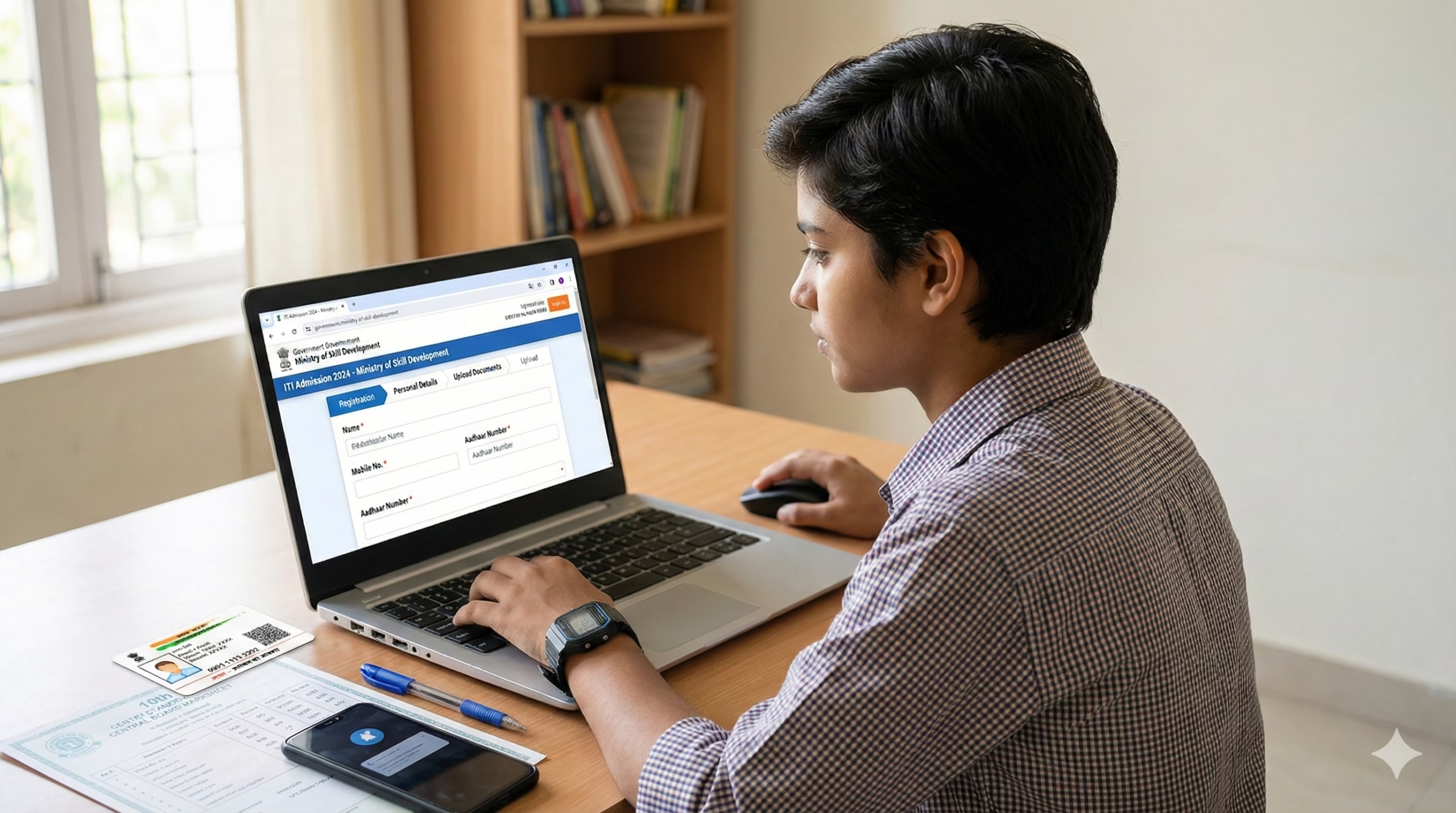
Before starting your online application, keep these documents ready in scanned format (JPG/PDF, usually under 200KB each):
- Educational Certificates: Class 8th/10th/12th mark sheet and passing certificate
- Date of Birth Proof: Birth certificate, 10th mark sheet, or Aadhaar card
- Aadhaar Card: Mandatory for identity verification and DBT scheme benefits
- Caste Certificate: SC/ST/OBC certificate from competent authority (if applicable)
- Domicile/Residence Certificate: Issued by SDM/Tehsildar for state quota seats
- Income Certificate: For EWS/fee waiver categories (issued within last 6 months)
- Passport Size Photographs: Recent colored photo (digital format, specific pixel dimensions as per portal)
- Disability Certificate: If applying under PwD category (40% or above disability)
- Bank Account Details: Passbook first page or cancelled cheque for scholarship/stipend
- Mobile Number and Email ID: Active and accessible for OTP verification
Online Application Process: State-Wise Portals
ITI admissions in India are conducted by state governments through their respective online portals. Here’s the detailed step-by-step process:
Common Online Application Steps (Applicable to Most States)
1. Visit Your State’s Official ITI Admission Portal
State-wise official portals:
- Uttar Pradesh: https://www.upiti.in or https://www.scvtup.in
- Maharashtra: https://mahahsscaa.in
- Karnataka: https://kaushalkar.karnataka.gov.in
- Madhya Pradesh: https://www.mponline.gov.in (search for ITI admissions)
- Rajasthan: https://admissions.education.rajasthan.gov.in
- Bihar: https://www.bsdc.bihar.gov.in
- West Bengal: https://wbsdc.org
- Tamil Nadu: https://www.dtet.tn.gov.in
- Gujarat: https://www.itetms.gujarat.gov.in
- Delhi: https://iti.delhigovt.nic.in
- Haryana: https://www.techadmissionshry.gov.in
- Punjab: https://pbte.edu.in
- Telangana: https://apprenticeship.gov.in or state portal
- Andhra Pradesh: http://apepass.cgg.gov.in
Note: Portal URLs may change. Always verify through official state government education department websites.
2. New User Registration
- Click on “New Registration” or “First Time User” button on the homepage
- Enter basic details: Full name (as per 10th certificate), father’s/mother’s name, date of birth
- Enter mobile number → Click “Send OTP” → Enter 6-digit OTP received via SMS
- Enter valid email address → Verify through OTP
- Create login credentials: Choose username and strong password (combination of uppercase, lowercase, numbers, special characters)
- Enter Aadhaar number → Verify through Aadhaar OTP (sent to registered mobile)
- Complete security question for password recovery
- Click “Submit” → Registration ID and password will be displayed/sent to email
- Take screenshot and note down Registration/Application ID
3. Login to Your Account
- Return to homepage and click “Login” or “Registered User Login”
- Enter Registration ID/Username and Password
- Enter captcha code displayed on screen
- Click “Login” to access your dashboard
4. Fill Application Form (Part-wise)
Part A: Personal Details
- Candidate name (auto-filled from registration, verify carefully)
- Father’s name, Mother’s name
- Gender, Date of Birth (DD/MM/YYYY format)
- Aadhar number (if not entered during registration)
- Category: General/SC/ST/OBC/EWS (select as per certificate)
- PwD status: Yes/No (if yes, select disability type and percentage)
- Religion, Nationality (Indian)
Part B: Contact & Address Details
- Present address: House/Flat number, Street, Village/City, District, State, PIN code
- Permanent address: Same as present (checkbox) or enter separately
- Mobile number and alternate contact number
- Email address
- Communication preference for admission updates
Part C: Educational Qualification
- Select qualifying examination: 8th/10th/12th
- Board name (CBSE/ICSE/State Board)
- Roll number and year of passing
- Marks obtained and total marks/CGPA
- Percentage (auto-calculated or manual entry)
- Name of school/institution and district
Part D: Trade/Course Preference
Most states allow 5-10 trade preferences. Select wisely based on:
- Your educational qualification (some trades require 10th, others 12th)
- Interest and career goals
- Trade duration (1 year/2 years)
- Employment opportunities
Common ITI Trades:
- Engineering Trades: Fitter, Electrician, Welder, Turner, Machinist, COPA (Computer Operator & Programming Assistant), Electronics Mechanic, Mechanic Motor Vehicle, Refrigeration & AC, Draughtsman (Mechanical/Civil), Plumber, Wireman
- Non-Engineering Trades: Stenography, Secretarial Practice, ICTSM (Information Communication Technology System Maintenance), Dress Making, Hair & Skin Care, Food Production
5. Upload Required Documents
Document upload specifications (verify on your state portal):
- File format: JPG, JPEG, or PDF
- File size: 50KB to 200KB (as specified)
- Photograph: Passport size, colored, recent (within 3 months)
- Signature: On white paper, scanned (10-50KB)
- Resolution: Usually 200-300 DPI
Upload process:
- Click “Browse” for each document type
- Select file from your computer/phone
- Wait for green tick/success message after upload
- Preview uploaded document to verify clarity
- If rejected, re-upload correct file
6. Select ITI Institute Preferences
- Most states allow 5-20 institute choices
- Selection criteria: Location, trade availability, government/private, hostel facility
- Government ITIs have lower fees (₹500-3,000 per year)
- Private ITIs charge ₹10,000-50,000 per year depending on trade
- Click “Search ITI” → Filter by district, trade, type
- Add to preference list in order of priority
- Drag and rearrange preferences before final submission
7. Review and Preview Application
- Click “Preview” to see complete filled form
- Verify all details carefully (name spelling, DOB, category, mobile, email)
- Check document uploads are visible in preview
- Take PDF printout/save screenshot of preview for records
- Go back to edit if any corrections needed
8. Pay Application Fee (If Applicable)
Fee structure varies by state:
- General/OBC: ₹200-500
- SC/ST: Usually ₹100 or exempted
- PwD: Exempted in most states
Payment modes:
- Debit Card/Credit Card
- Net Banking
- UPI (PhonePe, Google Pay, Paytm)
- E-Challan (pay at bank for offline payment)
After payment:
- Transaction ID will be generated
- Payment receipt will be sent to email
- Note down transaction reference number
9. Final Submission
- After payment success, return to application portal
- Click “Final Submit” or “Lock Application”
- Warning: After final submission, you CANNOT edit the form
- Confirmation message will appear on screen
- Application number will be generated (different from Registration ID)
- Download filled application form PDF
- Take multiple printouts for future reference
10. Save Confirmation Details
Your confirmation page should have:
- Application/Registration number
- Candidate name and photograph
- Applied trades and ITI preferences
- Payment transaction ID
- Submission date and time
- “Successfully Submitted” status
Offline Application Process (Where Available)
Some states still accept offline applications or have hybrid systems:
1. Download Application Form
- Visit state ITI website and download PDF form
- Or collect physical form from District Employment Office or ITI institutes
- Form cost: ₹50-100 (if purchased from ITI)
2. Fill Form Manually
- Use BLACK pen, CAPITAL LETTERS
- Fill all mandatory fields marked with *
- Paste recent passport size photograph
- Attach self-attested photocopies of all required documents
3. Pay Fee via Challan
- Download fee payment challan from website
- Visit designated bank (usually SBI, PNB, or as specified)
- Pay cash/DD and get stamped acknowledgment
4. Submit at Designated Centers
- Submit at District Trade & Employment Office
- Or directly at desired ITI institute (if permitted)
- Get acknowledgment receipt with submission date
- Note down token/receipt number for tracking
5. Keep Copies
- Original acknowledgment receipt
- Photocopy of filled form with all attachments
- Fee payment challan copy
How to Check Application Status and Track Admission
Online Status Check:
- Visit your state’s ITI admission portal
- Click “Check Application Status” or “Track Application”
- Enter Application Number/Registration ID
- Enter Date of Birth or Password
- Enter captcha code
- Click “Submit” or “View Status”
Status messages you may see:
- “Application Submitted Successfully”: Your application is received
- “Under Verification”: Documents are being checked by authorities
- “Document Error/Rejection”: Specific document needs correction (check remarks)
- “Merit List Published”: Your name appears in provisional selection list
- “Allotted”: You have been allotted a seat in ITI and trade
- “Waiting List”: You are on waiting list, seats may be available in subsequent rounds
- “Not Allotted”: No seat allotted in current round
Merit List and Seat Allotment:
States usually conduct 3-5 rounds of counseling:
- Round 1: Based on first preferences and merit
- Round 2-3: Remaining seats after spot verification
- Spot Round: Last minute vacant seats
Check merit list:
- Visit portal during counseling period (dates announced via notification)
- Enter credentials and check if your name appears
- Note down allotted ITI name, trade, and reporting date
Download Allotment Letter:
If allotted:
- Login to portal
- Click “Download Allotment Letter” or “Provisional Admission Letter”
- PDF will download with details: ITI name, trade, reporting date, required documents
- Take 2-3 printouts
Reporting to ITI Institute:
Within 5-7 days of allotment (as specified):
- Visit allotted ITI with original documents
- Submit allotment letter and documents for verification
- Pay admission fee and course fee
- Collect fee receipt and student ID card
- If you don’t report, your seat will be cancelled and offered to waiting list
Common Problems and Solutions
1. Error: “Aadhaar OTP Not Received” or “Aadhaar Authentication Failed”
Solutions:
- Ensure mobile number is linked to your Aadhaar card (check via https://resident.uidai.gov.in)
- If number not linked, visit Aadhaar enrollment center with Aadhaar and mobile
- Use “Resend OTP” option after 30 seconds
- Try during non-peak hours (early morning 6-9 AM)
- Clear browser cache and cookies, try again
- Use different browser (Chrome, Firefox)
- Contact UIDAI helpline: 1947
2. Error: “Document Upload Failed” or “File Size Too Large”
Solutions:
- Compress image using online tools (reduce to under 100KB without losing clarity)
- Use JPEG format instead of PNG (smaller size)
- Ensure file name has no special characters (use: photo.jpg, not photo@123!.jpg)
- Scan documents at 200 DPI resolution, not higher
- Use Microsoft Paint or Photoshop to resize if needed
- Try uploading from laptop/desktop instead of mobile
- Recommended free tools: https://www.ilovepdf.com or https://www.adobe.com/acrobat/online/compress-pdf.html
3. Error: “Application Number Not Found” During Status Check
Solutions:
- Double-check Application/Registration number (not transaction ID)
- Ensure you’re checking on correct state portal
- Wait 24-48 hours after submission for database update
- Clear browser cookies and try again
- Contact helpline with payment receipt and screenshot
- Check email/SMS for correct application number
4. Error: “Payment Successful But Application Shows Pending”
Solutions:
- Wait for 2-3 hours for payment gateway reconciliation
- Do NOT pay again immediately
- Check bank statement to confirm debit
- If amount deducted but status not updated after 24 hours:
- Take screenshot of payment success page
- Note transaction ID/reference number
- Contact portal helpline with these details
- Email to official support with subject: “Payment Issue – Application No. XXXXX”
- Refund process (if duplicate payment): 7-15 working days
5. Error: “Session Timeout” or “Page Not Loading” During Form Fill
Solutions:
- Fill form section-wise, save as draft frequently
- Use “Save as Draft” button after each section
- Don’t keep browser idle for more than 15-20 minutes
- Avoid using mobile data with weak signal; use WiFi/broadband
- Disable VPN if using any
- Try incognito/private browsing mode
- Use updated browser version (Chrome 100+, Firefox 90+)
- Try different device (laptop preferred over mobile)
Official Helpline Numbers and Contact Information
National Council for Vocational Training (NCVT)
- Website: https://www.ncvtmis.gov.in
- Email: support.ncvt@gov.in
- Helpline: 011-26160954
State-wise ITI Helplines:
- Uttar Pradesh: 1800-180-5424 (Toll-free) | Email: upiti@nic.in
- Maharashtra: 022-26702789 | Email: mahahsscaa@dtemaharashtra.gov.in
- Karnataka: 080-22250916 | Email: kaushalkar@gmail.com
- Madhya Pradesh: 0755-2576851 | MP Online Helpline: 0755-6720200
- Rajasthan: 0141-2706106 | Email: dte.support@rajasthan.gov.in
- Bihar: 0612-2235881 | Email: bsdc.skillmission@gmail.com
- West Bengal: 033-23376551 | Email: wbsdc@wbsdc.org
- Delhi: 011-23072200 | Email: iti.delhi@nic.in
- Tamil Nadu: 044-28544416 | Email: dtettn@tn.gov.in
- Gujarat: 079-23256430 | Email: itetms@gujarat.gov.in
- Haryana: 0172-2585850 | Email: techadmission.hry@gov.in
Best Time to Call: Monday to Friday, 10:00 AM – 5:00 PM (excluding public holidays)
Email Query Format:
- Subject: Issue Type – Application No. XXXXX
- Include: Full name, application number, mobile, issue description, screenshots
- Expected response: 3-5 working days
Alternative Contact Methods:
- Visit nearest District Employment Office during working hours
- Contact directly at your preferred ITI institute for admission queries
- Check official social media pages for updates (Twitter/Facebook handles of state DTE)
This information is from official sources as of February 2026. Always verify on your state’s official ITI admission portal for latest updates, dates, and procedures. Admission schedules typically open in May-June and October-November each year for different sessions.
Author

Discover more from Tips Clear - Content For Daily Life
Subscribe to get the latest posts sent to your email.